Project: Git Advice
Can all your team members work on the code independently at the same time? The answer is yes! That is exactly what Git and GitHub are for.
Here’s the trick: if two teammates independently make changes to the same code, the first one can push just fine — but the second one to push will have to pull first, and may get a “merge conflict.” This isn’t an emergency, but it does take a little thought, and may require instructor intervention.
Here are some rules to help you:
-
Pull often. In general, it’s a good idea to pull every time you start a new task. It’s easy to forget that other people are working on the code at the same time as you! Every time you sit down to work, do a quick pull just to make sure you’re working with the latest code from your teammates.
-
Push often. Do you have some small step that makes sense, moves the project forward a little, and worked when you tested it? Push it! Don’t wait until you have an entire feature perfected. At this early stage in the project, it’s better to share your work early and often. That said…
-
Always test before you push. The golden rule of sharing a repository with other developers:
Never push broken code.
If you have a problem while you’re developing, well, at least it’s only on your machine, so your teammates can keep working (and maybe one can jump in to help you out). But as soon as you push that code, your problem becomes your whole team’s problem! Now everyone has to stop what they’re doing until the problem is fixed.
-
Coordinate with your teammates. If you are clear at all times about who is working on what, you can avoid making conflicting changes or creating redundant effort. Use Slack. Find a schedule of regular meetings, check-ins, or other team-wide communication that works for you. As much as possible, make sure everybody knows what’s going on at all times.
-
Pair programming is great. You can continue to use the driver/navigator model, just as we’ve been doing for the in-class activities all semester.
All this advice will help you avoid Git trouble. Still, Git trouble will inevitably come — and Git is notoriously confusing!
Pulling changes before you push
Sometimes, when you try to push, you may see a message like this:
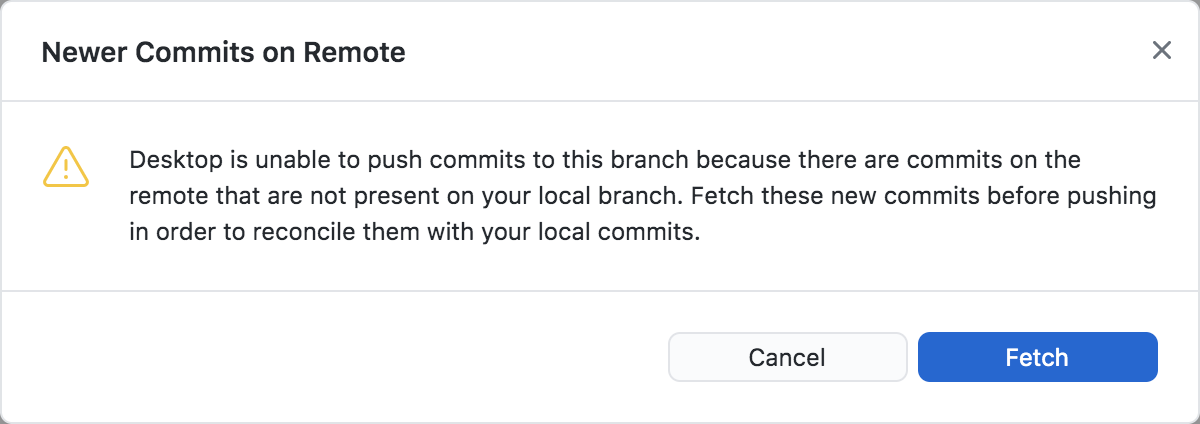
This is not an emergency! It just means that another teammate pushed changes since the last time you pulled. Click Fetch — but remember that now you will need to retest your code before you push.
After fetching, you’ll see something like this. Click Pull origin.
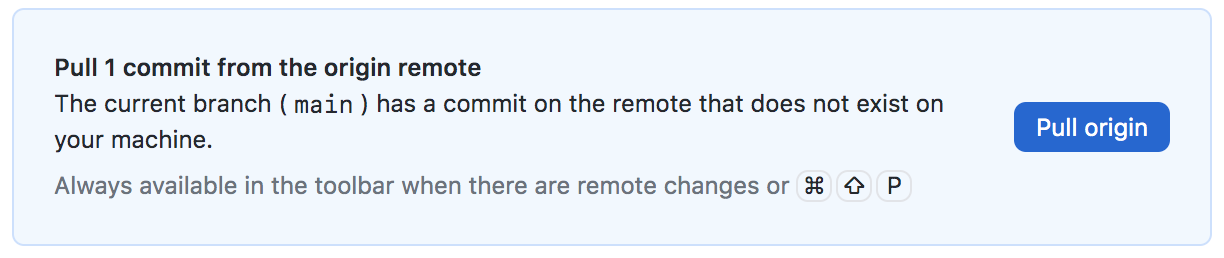
After clicking Pull origin, you might get this message — but wait!
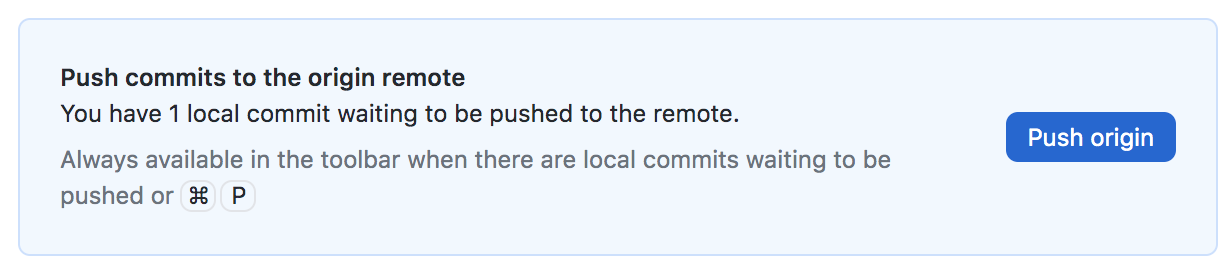
Don’t click that Push button just yet! Git just merged your changes with your teammate’s changes, and there’s no guarantee Git got it right. You need to quickly test your project again in VS Code to make sure everything is still working. Once you’ve done that quick test, then it’s OK to push.
Merge conflicts
After pulling, you might also get a message like this:
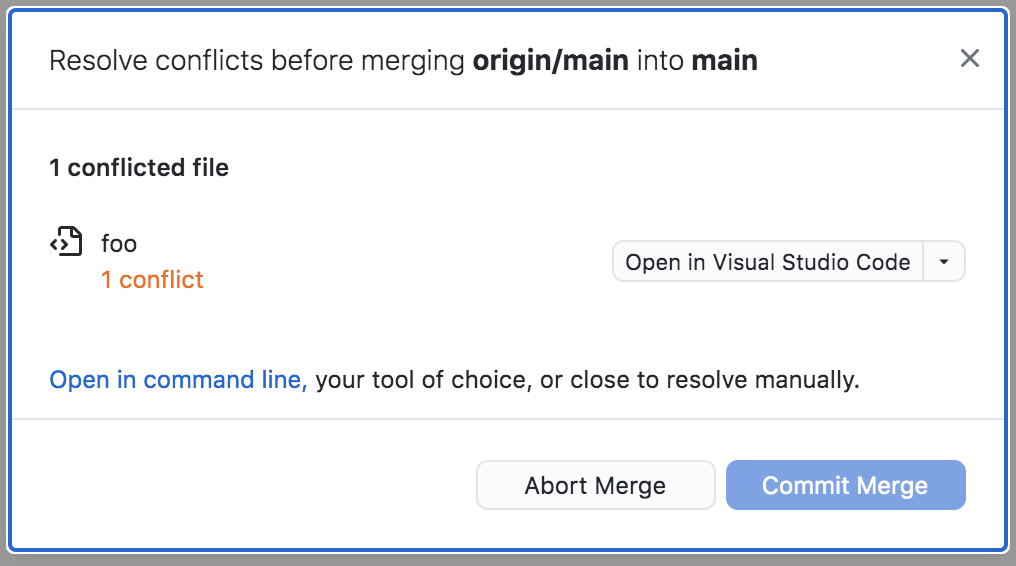
That means that you and a teammate changed the very same lines of code, and you need to figure out how to combine your work with their work. Some things to know about this situation:
- You can’t fix this by just pushing buttons until it works. You have to think.
- If you do try to fix it carelessly, you’ll probably delete a teammate’s work.
- This is a good time to call in the instructor and get some hands-on help.
Click that Open in Visual Studio Code button, and then don’t just start making changes. Call in teammates or the instructor for help, and we’ll walk you through resolving your first merge conflict!
(You will learn more about navigating merge conflicts yourself if you take COMP 225.)
Next: Project report